

(that doesn’t use AI)
(and doesn’t cost an arm and a leg)
It must be the season of starting new writing projects. On literally every group I’m in and on every social media thread with writers, there is someone asking “what software do you use to write?” There’s the recommendations of Scrivener, Novlr, Write!, Ulysses, Atticus, yWriter, or Dabble.
First off, I do not recommend writing directly into a book formatting program like Atticus or Vellum. You should be able to send the file to beta readers, and editors without a lot of conversion, which often leaves a file looking weirdly formatted.
If you’re late arriving to this. I am a writer, too. I needed something that allowed me to be flexible in how I could shape, sort, and store notes that matched the flow of the projects. But all-in-one story development apps, like Scrivener, Dabble, Plottr, and Novlr felt too rigid. I sometimes wanted to include images along with written notes. I often forgot I had a detail already figured out and made a duplicate entry in the database, though worded differently, so I never caught onto the inconsistency until I was trying to edit.
Now, note, I am talking about planning and drafting the story. The most important element of that is the writing. I needed something that allowed me to write FICTION, and didn’t keep on me for using grammar “constructions “incorrectly” like fragments, or idioms. And it had to have fewer bells and whistles really designed for other writing (like business or formal).
Yes, Microsoft Word DOCX is the default format for uploading to a lot of the book formatting apps, and it’s the format necessary if you are planning to query agents and traditional publishers. This does not mean that you can’t write in some other app and SAVE the file in the desired MS Word format in something else entirely. That was my first requirement. As I explored, I kept coming back to one app, again and again: LibreOffice.
LibreOffice
This pay-what-you-can (recommended donation is US$19) open-source software has a comparable item for nearly every item in the Microsoft Office suite of apps. It is not a subscription service. You download it, install it to your computer, and you own it. No ifs, ands, or buts. It isn’t memory heavy. You can include hypertext links to connect files, pages, or slides on keywords, or to jump out to the internet. This IMHO allows me to organically build my own “web” of information related to my stories. If I need a website as a regular reference, I can link it. If I want an image or map as inspiration, I can copy/paste it into a mood board, or I can link to the image on the internet.
Saving all the documents in the same folder, I’ve essentially got a folio for my project with all the elements in one place.
When I go to save the story file to send it to a publisher or book formatter, I can “Save As…” to the MS Word DOCX format. My recipient is able to open the file in Microsoft Word without any issues.
Later, I can pull that commented and edited file back into LibreOffice’s Writer app and review the tracked changes just like is done in Word. I can accept or reject edits, and even reply to comments. No file conversion necessary, LibreOffice handles the Word file format without issues.
While Google Docs can do a lot of these same things, Meta is getting mucked up with AI and I’m just not interested in supporting that any longer. So here’s some suggestions on how to use the various apps within LibreOffice to build and write your story.
Impress
Let’s start with story building tasks. A lot of writers like visuals at this stage of the process. Or a mix of text and images. Similar to MS PowerPoint, in Slide Sorter view, the slides of Impress look (and can be moved around) just like notecards.
You can save everything in one file, or save multiple files, one for each character or setting location as “character name” or “setting name” and keep things separate. Or you can put all characters and their history into one file “characters – story title”, and all settings images and details into another file “settings – story title.”
Here’s some other ideas:
Plot Visualization
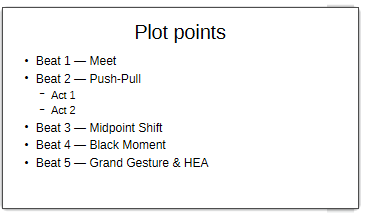
Put each plot point on its own slide, summarize the scene(s), list the POV character, the setting, order and reorder them. Include an image with the description, like creating a movie storyboard. You can color-code the slides by POV characters, or use highlighting in the text to identify various subplots’ elements at a quick glance. Then you can move around the slides until everything is in the order you want readers to experience in the book.
Character or Setting Notes
Because you can include images and text in Impress, you can develop your character or setting references. You can insert hypertext document links between slides or between Presentations and other Documents, so that you can move easily between documents that share the same world or series background.

Draw
Use this app to store your inspiration graphics, like a scrapbook — or mood board. Also, with its grid system, you can draw diagrams of buildings or made-up town maps, so you will always know which way to make your characters turn when they exit onto Main Street to go from the bookstore to the diner on Park Avenue. Note, you can also insert Draw files into an Impress slide and when you update one, it will update the other.

Calc
Calc is LibreOffice’s spreadsheet app, like MS Excel. But some plotters like the grid for tracking multiple plot points or character arcs. Put all the steps in, say, Three-Act Structure, or Romancing the Beat, or Save the Cat, or the Hero’s Journey down the first column. Then in the neighboring columns (1) identify the POV character, (2) write a brief summary of the scene, and (3) word count. You can even then use the sum() function on that last column, to have a running word count of your project as you write the draft, even if you skip around.
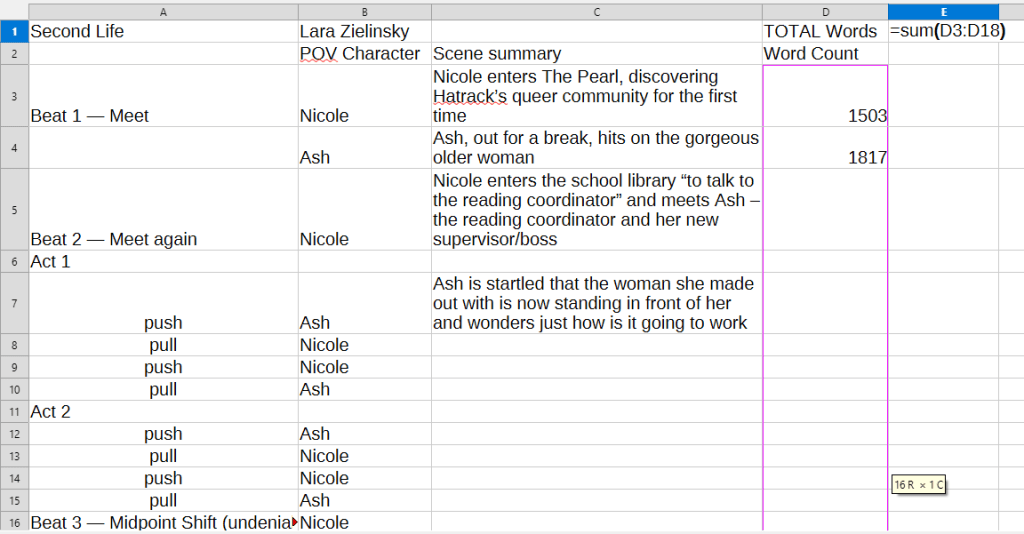
Grid systems are also useful for visualizing parallel character plots points, or events that overlap others in the timeline when different characters are doing different things in different places in the story. Use Merge Cells (either along a row, or vertically in a column) to have things that happen over longer periods of time “block” off.
Writer
This is the “what you came for” part of LibreOffice. The Writer app is super-similar to MS Word in both layout and where to find things under various menus. But the app and document format (ODT) are both way less memory-heavy. Writer will also read DOCX files without issue, even with tracked changes and comments (and replies to comments). Its spell check does not use AI, just references the rules of spelling.
It doesn’t have a built-in grammar checker, so you can easily use whatever diction, dialect, or patterning that your characters dictate without seeing a sea of red and blue squiggles. You can also create and load custom dictionaries to support the unique words for your sci-fi and fantasy worlds.
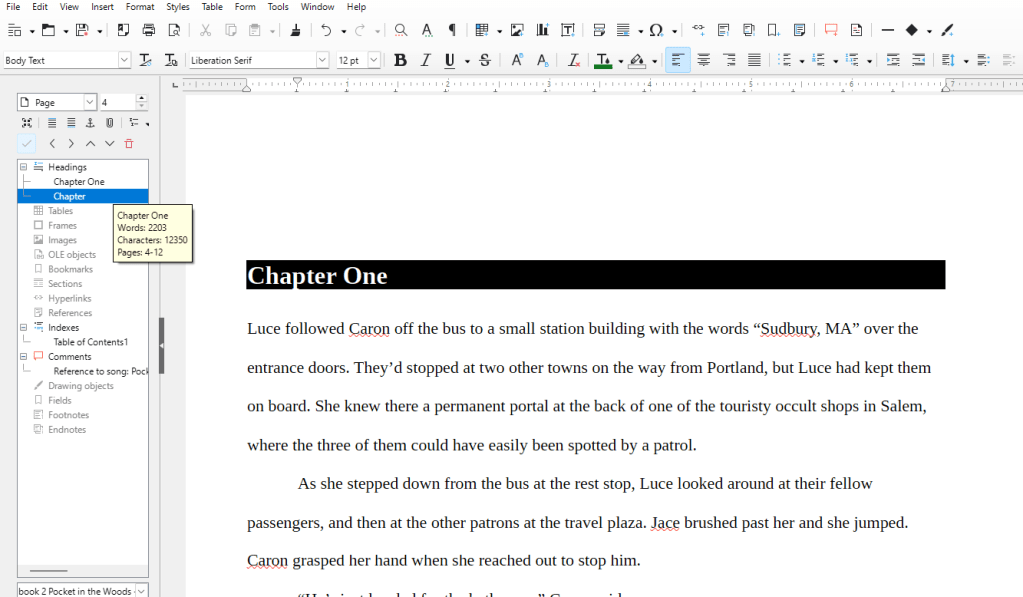
Tip: To create easy navigation in your story draft file, use the Headings feature. Heading 1 = Chapters, numbered or named. Heading 2 = a scene within a chapter, maybe by POV character name, or place, or even a ‘slugline’ brief. Also use Body Paragraph text, for the writing itself. Set up your styles and your manuscript margins (1 inch top, bottom, right, and left) and line spacing (double) before you begin. It is far easier to change things like fonts and spacing through redefining styles, than formatting the text directly, paragraph by paragraph, or even a page or section at a time.
In the Navigator, which you can bring up on the left (see screenshot above), you can then jump to a particular scene or chapter by double-clicking on the specific heading in the list. This will also allow for quick table of contents building in many formatting programs.
Comment below
If you explore LibreOffice to write your next book, let me know in the comments how you used the various apps
~ Lara
Lara Zielinsky is an author and editor. With more than 17 years of experience, she offers a full range of services to the indie author, or the author seeking coaching or help perfecting a query package. She enjoys creating relationships with authors over multiple books and helping them grow as writers. Rates are competitive and payment plans are available. Click for testimonials or a list of clients’ books.

Discover more from LZ Edits | Editing Services
Subscribe to get the latest posts sent to your email.

